Berora – PowerPoint Template for Confident Presentations
Creating a presentation that truly connects with an audience takes more than good data—it takes clarity, visual flow, and a design that supports your message rather than distracting from it. That is where Berora – PowerPoint Template enters the picture. Whether you are pitching a product, teaching a class, or sharing a portfolio, having a flexible and polished template saves time and elevates the final result.
This article walks through what the Berora template offers, who it suits best, and how to make practical use of its features in real-world scenarios. No fluff—just a straightforward look at a tool designed to help you communicate better.
What Makes Berora Different from a Standard PowerPoint Template?
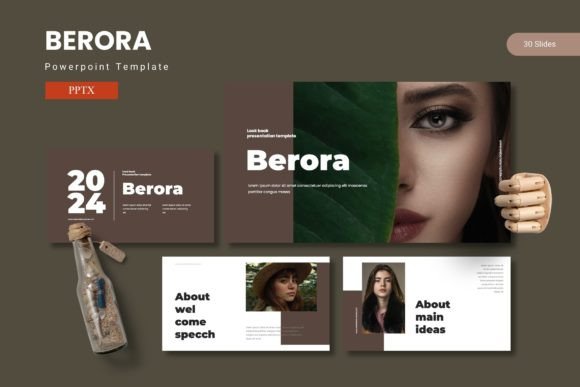
Most PowerPoint templates give you a handful of slides and a color palette. Berora – PowerPoint Template takes a broader approach. With 150 total slides spread across five distinct color variations, you are not locked into a single look. Each color scheme includes 30 slides, giving you enough room to build a complete presentation without repeating layouts or running out of options.
The template is built on master slides, meaning any global change you make—like adjusting a font or swapping a color—updates across all slides automatically. That is a practical time-saver when you are iterating on a deck for a client presentation or a board meeting.
On top of that, every graphic is fully resizable and editable. You are not stuck with fixed illustrations. If you need to scale an icon, recolor a shape, or reposition an element, you can do so without breaking the design.
Key Features That Add Real Value
Let's break down what you actually get with this template and why each feature matters in practice.
150 Slides with Purposeful Variety
Having 150 slides might sound excessive, but the real advantage is choice. You get section breaks, infographic layouts, gallery pages, portfolio slides, and content layouts all in one file. Instead of hunting for separate templates for different parts of your presentation, everything lives in one place. This is especially useful when you are working under a tight deadline and need a slide that fits a specific purpose—whether it is a data-heavy spread or a full-bleed image layout.
Handcrafted Infographics Based on Master Slides
Data visualization can make or break a presentation. The handcrafted infographics in Berora – PowerPoint Template are designed to be both informative and visually clean. Because they are tied to master slides, you can customize colors and labels without worrying about alignment or consistency. If you regularly present metrics, timelines, or comparisons, these slides will save you the headache of building charts from scratch.
Drag-and-Drop Picture Placeholders
Image-heavy presentations—like portfolios, real estate listings, or product showcases—benefit from picture placeholders. You simply drag your image into the placeholder, and it snaps into position. No resizing, cropping, or manual alignment. This feature alone cuts slide-building time significantly, especially if you are swapping out visuals frequently.
Five Color Variations in One Package
Color consistency is a core part of professional branding. Each of the five color schemes in the Berora template comes with 30 slides, giving you a complete deck in that palette. If you present to different clients or departments that prefer distinct looks, you can pick the scheme that fits without rebuilding anything. The color variations also help if you want to test which palette resonates best with your audience before committing long-term.
Practical Applications Across Different Contexts
A good template works across multiple environments. Here is how Berora fits into common real-world use cases.
Business Pitches and Client Presentations
When you are standing in front of potential investors or clients, every slide needs to support your narrative. The section break slides in Berora help you transition between topics—like market analysis, product overview, and financial projections—without jarring jumps. The infographic layouts let you present revenue trends or user growth in a way that is easy to grasp at a glance. And because all graphics are editable, you can tweak icons or charts to match your brand colors exactly.
Educational and Training Materials
Teachers, trainers, and workshop facilitators often need slides that balance text with visuals. The Berora template includes layouts that allow for bullet points alongside supporting images, which is ideal for explaining concepts step by step. The gallery and portfolio slides also work well for showcasing student work or case studies during a training session.
Creative Portfolios and Personal Branding
Freelancers, designers, photographers, and artists can use the gallery and portfolio slides to present their work professionally. The picture placeholders make it easy to swap in your latest projects, while the clean design keeps the focus on your images. The five color schemes let you match the template to your personal brand without needing advanced design skills.
Internal Reporting and Team Updates
Weekly or monthly reports often suffer from cluttered slides and inconsistent formatting. With Berora, you can set up a standard deck using one color scheme and reuse it week after week. The master slides ensure that any template-level updates—like a new company logo or font change—apply to every slide automatically. That consistency helps your team focus on the content rather than the formatting.
Benefits That Improve Your Workflow and Results
Beyond the feature list, using Berora – PowerPoint Template brings several practical benefits to how you work and how your audience receives your message.
Faster Slide Creation Without Sacrificing Quality
Because the template includes 150 slides with thoughtful layouts, you rarely need to build a slide from zero. Drag in your content, drop it into the right layout, and adjust colors or text as needed. For someone who creates presentations regularly, this can cut preparation time by half or more.
Consistent Visual Language Across Your Deck
One of the hardest parts of building a presentation is keeping fonts, colors, and spacing consistent across 20 or 30 slides. The Berota template's master slide architecture handles that automatically. Once you set your preferences, every new slide follows the same rules. This consistency makes your presentation look polished and professional, even if you are not a designer.
Better Audience Engagement Through Clear Visuals
When your slides are visually cluttered or mismatched, your audience spends mental energy deciphering the layout instead of absorbing your message. Berota's clean infographics, balanced text-image ratios, and purposeful section breaks keep the focus on your content. The result is a presentation that feels easier to follow and more memorable.
Flexibility to Adapt Without Redesigning
Need to pivot your presentation for a different audience? Swap to a different color scheme from the same template. Adding more slides? Pull from the unused layouts. Updating your branding? Change the master slide and the whole deck updates. This flexibility means you invest once in the template and use it repeatedly across different contexts.
Practical Considerations Before Using Berora
No template is a magic bullet. Here are a few practical things to keep in mind.
Start with the Readme File
The folder includes a Readme file with font and photo information. Take five minutes to read it before you start editing. Knowing which fonts are used and where the placeholder images come from will save you troubleshooting time later. If you need to use custom fonts, install them first so your presentation renders correctly.
Use One Color Scheme Per Deck
While the five color variations are a strength, avoid mixing them within a single presentation. Stick to one scheme per deck to maintain visual coherence. If you want to test different looks, create separate copies of the file and apply different schemes to each.
Customize the Master Slides First
Before you start adding content, open the master slide view and adjust the global settings—fonts, accent colors, and background styles. This ensures every new slide you add matches your preferences from the start. It also makes later edits faster because you are not fixing inconsistencies slide by slide.
Keep Your Images High Resolution
The picture placeholders work best with high-resolution images. Low-quality photos will look pixelated when stretched to fill a slide. If you are presenting on a large screen or projector, this matters even more. Aim for images that are at least 1920 pixels wide for full-slide backgrounds.
Final Observations
Berora – PowerPoint Template is a solid choice if you create presentations regularly and value both speed and design quality. The 150 slides give you range without overwhelming you, the five color schemes offer flexibility without extra work, and the master slide foundation keeps everything consistent. Whether you are a marketer building a campaign deck, an educator preparing course materials, or a freelancer showcasing your portfolio, this template gives you a reliable starting point that you can tailor to your needs.
Take the time to explore the layouts, customize the master slides to your brand, and use the picture placeholders and infographics where they add the most value. With a bit of upfront setup, you will have a presentation tool that serves you well across multiple projects and audiences.