Prestige - Keynote Template: A Practical Framework for Polished Presentations
Every presentation you deliver reflects the time and thought you put into it. But the difference between a good presentation and a great one often comes down to structure, consistency, and visual flow. The Prestige - Keynote Template is built to bridge that gap—not by adding decoration, but by giving you a repeatable system for building slides that work together. Whether you're pitching to clients, reporting quarterly results, or teaching a workshop, this template helps you move from blank slide to finished deck with less friction and more control.
What Prestige - Keynote Template Brings to Your Workflow
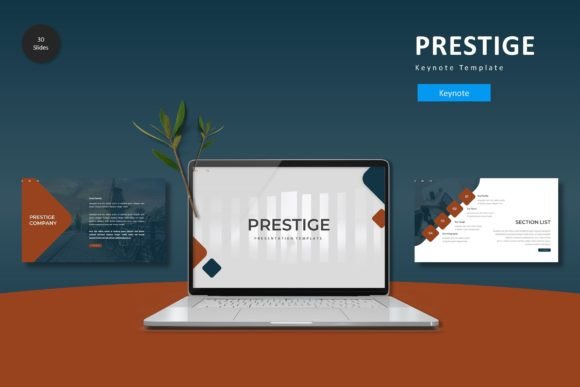
At its core, this template is a collection of 150 total slides organized into five premade color schemes, with 30 slides per scheme. That means you are not starting from scratch each time. Instead, you begin with a foundation that already handles layout, spacing, typography, and visual hierarchy. The template includes section break slides, handcrafted infographics, gallery and portfolio slides, and picture placeholders that let you drag and drop images directly into your deck.
Because it is built on master slides, you can make global changes to fonts, colors, or backgrounds without editing each slide individually. This is especially useful when you need to maintain brand consistency across multiple presentations or adapt a single deck for different audiences. The pixel-perfect illustrations and graphic elements are resizable and editable, which means you are not locked into a rigid design. You can reshape, recolor, or remove any element to match your specific message.
The template works entirely inside Apple Keynote, which is already a familiar tool for many professionals. You don't need extra software or design skills to get results. The file includes a folder with the Keynote files, a readme document, and font and photo information. The preview images shown in the marketplace are not included, so you will supply your own visuals—something you would likely do anyway to keep the presentation authentic to your brand.
Where Prestige Fits in a Real Project Cycle
Think about how a typical presentation comes together. You start with research and outline, then move into slide creation, then refine the design and messaging, and finally rehearse and deliver. The Prestige - Keynote Template is most useful during the slide creation and refinement phases, but it also influences the earlier and later stages in practical ways.
When you know you have a solid template waiting, you can plan your content more deliberately. Instead of worrying about how to lay out five bullet points or where to place an image, you focus on what the slide needs to communicate. This shifts your mental energy from formatting to strategy, which is almost always a better use of time.
During the design phase, you can import your content directly into the pre-built slides. Because the template includes 30 distinct slide layouts per color scheme, you can mix and match to create variety without reinventing the layout for every slide. The section break slides help your audience follow the narrative arc, and the gallery and portfolio slides give you ready-made templates for showcasing work, products, or case studies.
After the presentation is built, the template continues to support your workflow. If a stakeholder asks for a color change or a font adjustment, you can update the master slides and the entire deck updates automatically. This saves hours of manual editing and reduces the risk of inconsistencies. When you revisit the same presentation months later, the structure remains intact, and you can swap in new data or images without disrupting the overall design.
How to Integrate Prestige Into Your Daily Work
If you produce presentations regularly, having a template like this changes how you approach each new project. Instead of opening a blank document and staring at a white canvas, you open a copy of your chosen color variation and immediately see a framework. You can delete slides you don't need, duplicate ones that fit your message, and rearrange the order to tell your story.
One practical approach is to keep a master copy of the template in a dedicated folder, along with your brand assets. Before you start a new presentation, duplicate the master file and rename it for the specific project. This way, you never alter the original, and you always have a clean starting point. Inside that copied file, delete the slides that are irrelevant to your current talk, then begin inserting your content.
For team environments, you can share the template file with colleagues and establish a few simple conventions. For example, use one color scheme for client-facing decks and another for internal reporting. Or use the same color scheme across all decks but vary the infographic slides to match the data type. Over time, your team builds a shared visual language that makes every presentation feel cohesive, even when different people create them.
The picture placeholders are worth special attention. When you drag an image into a placeholder, it automatically scales and crops to fit the frame. This eliminates the need to resize and reposition images manually. For anyone who works with product photos, team headshots, or portfolio images, this feature alone can cut image handling time by more than half.
Practical Implementation Tips for Different Use Cases
Different professionals will use the template differently. Here are a few scenarios that show how the template adapts to real workflows.
Marketers and Agency Professionals
You likely produce multiple decks per month: pitch decks, campaign recaps, strategy overviews, and client reports. With 150 slides across five color schemes, you can assign a color scheme to each type of deck and reuse the same layouts repeatedly. The portfolio slides are especially useful for showing campaign results or case studies. Keep a running library of your best slides, and pull from it when building new presentations. Over time, your deck-building speed increases because you rely on proven layouts rather than reinventing each slide.
Educators and Trainers
When you teach the same material to different groups, consistency matters. Using the Prestige template, you can build one master deck for a course and then duplicate it for each cohort. Update dates, examples, and student-specific data without touching the overall design. The section break slides are helpful for signaling module changes, and the infographic slides work well for explaining processes, timelines, or comparisons. If you also record video lectures, the clean slide design ensures your visuals read well on screen.
Entrepreneurs and Small Business Owners
You may not have a design team, but you still need to look professional when presenting to investors, partners, or customers. The template gives you a polished starting point without requiring you to learn design software. Focus your energy on the content—your business story, your numbers, your vision—and let the template handle the visual structure. The gallery slides are ideal for product showcases, and the portfolio slides can highlight previous work or client testimonials. Because the template is editable, you can also incorporate your own logo and brand colors easily.
Freelancers and Creatives
Your portfolio is your most important marketing tool. The Prestige - Keynote Template includes dedicated portfolio and gallery slides that let you present your work in a clean, professional layout. Drag your project images into the placeholders, add a short description, and you have a client-ready portfolio deck in minutes. If you pitch to different industries, you can create separate decks using different color schemes, tailoring the visual tone to each audience.
Maintaining Quality and Consistency Over Time
A template is only as good as the habits you build around it. To get the most out of Prestige - Keynote Template, establish a few small practices that keep your presentations consistent and high-quality.
First, settle on your color scheme early. If you switch between colors frequently within the same deck, the visual cohesion breaks down. Pick one of the five premade colors and stick with it for that project. If you need to create a second deck for a different purpose, use a different color—but keep each deck internally consistent.
Second, take advantage of the master slides. Any change you make to the master slides propagates across all slides that use that master. If you decide halfway through building a deck that you want a different font or a smaller logo, update the master and the whole deck follows. This is a huge time saver, especially in the final review phase when small tweaks often arise.
Third, keep your source files organized. The template comes with five Keynote files, one for each color scheme, plus a readme and font information. Store these in a dedicated templates folder. When you start a new project, copy the appropriate Keynote file into your project folder and rename it. This keeps your original template pristine and prevents accidental overwrites.
Fourth, use the infographic slides intentionally. They are handcrafted and designed to communicate data clearly, but they work best when you match the graphic to the story you are telling. If you have a comparison to show, use a comparison infographic. If you are showing a timeline, use the timeline layout. Forcing data into the wrong visual format confuses your audience, so let the content dictate which slide you choose.
Long-Term Value and Adaptability
A well-designed template should serve you for years, not just for one project. The Prestige - Keynote Template is built to be durable. Because all graphics are resizable and editable, you can update the look of your presentations as your brand evolves. If you change your logo or shift your color palette, you can modify the template accordingly and use it going forward.
The 150-slide count might seem large, but it actually gives you flexibility. You are not expected to use every slide in every deck. Instead, you pick the slides that fit your message and ignore the rest. Over multiple projects, you will find yourself returning to certain layouts again and again. Those become your go-to slides, and you can build muscle memory around how to use them effectively.
For anyone who manages multiple presentations across a year, the template also serves as a benchmark for quality. Once you know what a well-structured slide looks like, it becomes easier to spot when a slide is not working. You can compare your draft slides against the template's layouts and adjust accordingly. This kind of self-review improves your overall presentation skills over time.
Final Observations on Using Prestige - Keynote Template
The goal of any presentation template is to reduce the gap between the message you want to deliver and the slides you put in front of your audience. Prestige - Keynote Template accomplishes this by giving you a structured, visually consistent foundation that handles design decisions ahead of time. Your job becomes one of content curation and storytelling, not pixel pushing.
If you are new to using presentation templates, start by spending 20 minutes exploring the file. Click through every slide in your chosen color scheme. Notice how the section breaks work, where the picture placeholders are located, and which infographic layouts exist. Then build a short test presentation with real content—even if it is just for practice. That hands-on experience will show you how the template behaves and where it fits into your workflow.
For experienced presenters, the template offers a way to standardize your output without sacrificing creativity. You have enough layouts to avoid repetition, and enough editable elements to customize each deck. The key is to treat the template as a starting point, not a cage. Adapt it, mix the slides, change the colors if needed, and make each deck your own.
In the end, the value of any tool is measured by how much time it saves you and how much better your output becomes. Prestige - Keynote Template delivers on both fronts, provided you integrate it deliberately into your process. Start with one deck, build the habit, and you will see why a structured template is one of the most practical investments you can make for your presentation workflow.