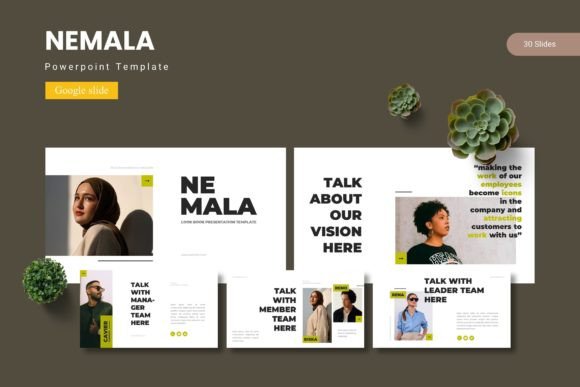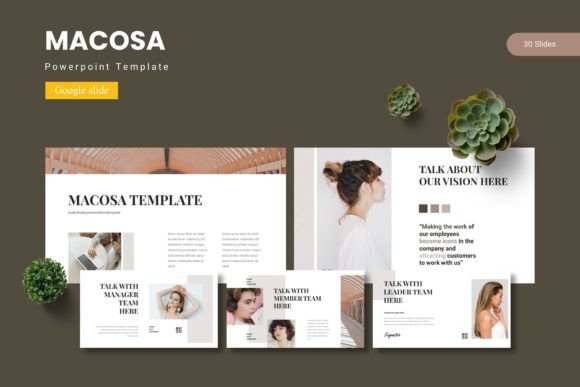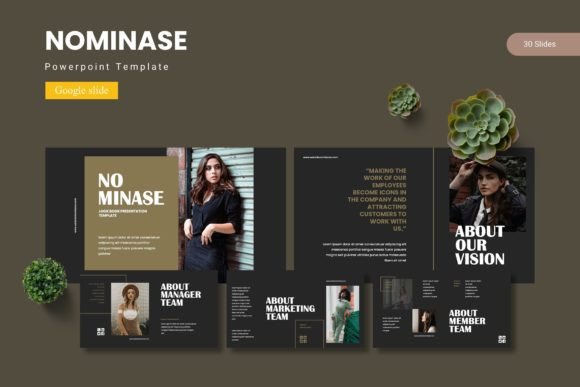
Nominase – Google Slide Template: A Practical Tool for Polished Presentations
If you’ve ever stared at a blank Google Slides deck with a deadline breathing down your neck, you know how quickly enthusiasm turns into frustration. You want something that looks professional without requiring hours of tweaking. That’s where the Nominase – Google Slide Template comes in. It’s not just another pack of pretty slides; it’s a full-fledged presentation system built for people who need to communicate clearly and confidently. Whether you’re pitching a product, teaching a class, or sharing a portfolio, this template gives you a head start so you can focus on your message rather than fighting with alignment tools.
What Is Nominase – Google Slide Template?
Nominase is a comprehensive Google Slides template that comes with 150 total slides spread across five premade color variations. That means you get 30 slides per template, each tailored for a different purpose. You’ll find section break slides, infographic layouts, gallery and portfolio pages, and even master slides that keep your fonts and spacing consistent throughout the deck. Everything is built on master slides – a detail that matters more than you might think. It means you can update the look of every slide at once by editing the master, rather than clicking through each one individually.
The template includes five complete PPTX files (compatible with Google Slides) and five color scheme folders. Inside each folder, you get the Google Slides file, a readme, font information, and photo credits. The illustrations are pixel-perfect, all graphics are resizable and editable, and picture placeholders let you drag and drop your own images without distorting the layout. It’s a ready-to-use toolkit for anyone who needs to produce visual content quickly.
Entrepreneurs and Small Business Owners
When you’re running a business, every presentation carries weight. A pitch deck to investors, a product launch webinar, or a quarterly review with your team – each one needs to feel polished. Nominase gives you that polish without requiring a design degree. The handcrafted infographics are especially useful for showing growth metrics, customer demographics, or revenue breakdowns. Instead of copying and pasting charts from Excel and hoping for the best, you can drop your data into infographic elements that are already designed to make numbers digestible.
Marketers and Content Creators
Marketers often need to create slide decks for different audiences – sometimes two or three in the same week. With five color variations built into Nominase, you can quickly switch between a corporate blue scheme for a client meeting and a creative orange palette for a social media strategy presentation. The gallery and portfolio slides are handy for showcasing case studies or campaign results. And because everything is editable, you can customize icons, resize illustrations, or adjust text to match your brand guidelines.
Educators and Trainers
Teachers, university lecturers, and corporate trainers need slides that are clear and engaging, not cluttered. Nominase’s section break slides help you organize your content into logical chunks, which is exactly what learners need to follow along. The infographic slides can simplify complex topics like supply chain cycles, biological processes, or historical timelines. Even if you’re teaching a workshop on presentation skills, using this template as your own deck demonstrates best practices in action.
Freelancers and Hobbyists
Freelancers often juggle multiple clients with different visual styles. Having a single template that offers 30 slides per variation means you can pull from the same base but switch colors and layouts depending on the project. Photographers and designers will appreciate the gallery and portfolio slides, which use picture placeholders that you can fill with your own work in seconds. Hobbyists creating slides for a community club or a personal blog talk can also benefit – the clean design keeps the focus on your photos or ideas.
Real Scenarios Where Nominase Shines
Let’s walk through a few concrete situations where this template makes a noticeable difference.
Scenario 1: The Last-Minute Board Meeting
You have a board meeting in the morning, and your boss asks for a slide deck covering Q2 performance, new initiatives, and budget updates. With Nominase, you can open the blue color scheme, use the section break slides for each major topic, drop numbers into the infographic layouts, and add team photos using the picture placeholders. The master slides ensure your headers and footers are consistent across 20 slides. You’ll finish the deck in under an hour instead of half a day.
Scenario 2: Pitching a Creative Campaign
A marketing agency needs to present a new ad campaign to a potential client. They want the deck to feel both professional and creative. Nominase’s gallery slides allow them to show mockups side by side, while the portfolio layouts can include mood boards and style frames. Because graphics are fully editable, the team can tweak colors to match the client’s brand. The result is a presentation that looks custom-built without custom design costs.
Scenario 3: Teaching an Online Workshop
A educator is hosting a two-hour workshop on urban gardening. They need slides for each step: intro, soil preparation, plant selection, watering schedules, and a Q&A section. Using Nominase, they assign a section break slide to each stage. The infographic slides help explain companion planting and watering frequency visually. By the end, participants have a clear, visual guide they can refer back to, and the educator didn’t spend hours building it from scratch.
Scenario 4: Freelance Portfolio Review
A freelance graphic designer is meeting a potential client in a week. They want to show their best work without making the presentation feel like a random collection of images. Nominase’s portfolio and gallery slides give a structured layout with drag-and-drop placeholders. The designer can add descriptions and project details alongside each image. The five color schemes mean they can pick a neutral scheme that won't compete with the artwork.
What to Keep in Mind Before Downloading
While Nominase is a robust template, a few considerations can help you get the most out of it. First, remember that the template is built for Google Slides, but the PPTX files are included. If you’re working entirely in Google Slides, upload the PPTX file or use the dedicated Google Slides file from the folder. The readme file includes font information – some fonts may require a quick free download to render correctly, so check that early.
Second, think about your audience and the context. The five color schemes cover a good range, but you may want to customize further. Since all graphics are resizable and editable, you can adjust saturation, swap icons, or even create a brand-new color variation by editing the master slides. The section break slides are particularly strong for dividing content, but don’t overuse them – one per major topic is enough.
Third, consider the file size. With 150 slides across 5 variations, you have a lot of options. But you don’t need to use every slide. Pick the ones that fit your narrative. The advantage here is flexibility, not pressure to fill every page. Also, the gallery and portfolio slides are ideal for images, but you can also repurpose them for quote slides or process diagrams if you get creative.
Finally, pay attention to the picture placeholders. They’re designed to make image insertion effortless – just drag and drop. But to maintain the clean lines, try to use images that match the placeholder dimensions or crop them beforehand. A quick resize in a photo editor will keep everything looking crisp.
Making the Most of the 150 Slides
One of Nominase’s strongest features is the sheer variety you get without paying for multiple templates. With 30 slides in each of five color schemes, you can test different backgrounds for the same content and see what resonates with your audience. For instance, if you’re preparing a product launch, you could prepare two versions – one in a calm dark scheme for internal review and one in a bright accent scheme for the public announcement.
The infographics are handcrafted, which means they’re not generic clip art. They’re designed to be edited and combined. You can take a timeline infographic from one slide and a flowchart from another, copy them into your own master deck, and adapt the colors using the theme editor. This modular approach saves time and keeps your presentations looking unique.
Another practical tip: use the section break slides as dividers in a long presentation. They serve as mental reset points for your audience. If you’re presenting a 60-minute talk, a well-placed section break slide at the 20-minute mark can help you transition topics smoothly. Combined with master slides, the overall flow feels deliberate and professional.
Why This Template Fits Modern Presentation Needs
Today’s viewers are accustomed to high-quality visuals. Whether they’re scrolling through slides on a laptop or watching a shared screen on Zoom, they notice when a deck looks thrown together. Nominase addresses that by offering pixel-perfect illustrations and consistent spacing from the start. The drag-and-drop picture placeholders remove the common frustration of images bleeding into text boxes or being cut off at edges.
For teams, the template’s master slide structure is a huge advantage. One person can update the font, color palette, or header style, and it ripples through every slide. This saves time during revisions and ensures brand consistency across multiple decks. Even if you’re working solo, that consistency makes your presentations look like they were produced by a dedicated designer.
The inclusion of a gallery and portfolio slide also caters to visual-heavy industries where showing is more powerful than telling. Architects, photographers, fashion designers, and real estate agents can all use those slides to present work in a clean, gallery-like format. The section break slides add a narrative rhythm that guides the viewer naturally.
Final Thoughts on Nominase – Google Slide Template
If you’re looking for a Google Slides template that reduces friction and improves output, Nominase is worth exploring. It covers a wide range of presentation types: business pitches, educational modules, creative portfolios, and marketing reports. The five color schemes give you instant variety, and the 30 slides per scheme ensure you’re never stuck with too few options.
What sets it apart from a generic template is the thought behind the layouts – handcrafted infographics, master slide control, and pixel-perfect illustrations that actually resize without looking wonky. Whether you’re a seasoned presenter or someone putting together your first big deck, this template gives you a solid foundation. And because it’s built for Google Slides (with PPTX included), you can work from anywhere without special software.
The key is to use the template as a starting point, not a crutch. Customize the colors, swap in your own photos, and adapt the infographics to tell your story. With 150 slides to choose from, you have the flexibility to create presentations that feel both polished and personal. In the end, that’s what a good template should do – help you look good without getting in your way.